
How-to guide · Beginner · 8 steps · Updated 21 October 2026
eBay Seller Hub explained: every tab and what to check there
eBay Seller Hub is eBay’s free dashboard for sellers. It puts your orders, listings, ads, performance, payouts, research and bulk files in one place. This guide walks through each tab, says what to check there, and ends with the jobs Seller Hub leaves to you.
Looking for one thing? Traffic, payouts and Terapeak each have their own step.
Steps 1 to 8 use only eBay’s own tools. The last part shows how Productivo, the app behind this guide, can help. You do not need a Productivo account for the steps.
Before you start
In shortYou need an eBay seller account with at least one sale, signed in on a computer.
Who it is for
LevelBeginner
WholesaleEasy
Every step works as written. Steps 7 and 8 matter most when you restock many items.
ResellingEasy
Every step works as written. Step 7 checks one-off items before you buy them.
HandmadeEasy
Every step works as written. Step 5 shows which pieces buyers open but do not buy.
Wholesale dropshippingMedium
Step 2 needs care: tracking comes from your supplier, so upload it as soon as the supplier sends it.
- You finish with
- A Seller Hub you know your way around: what to check daily, weekly and monthly, and in which tab.
- You need
- An eBay seller account with at least one sale
- A computer: the full Seller Hub works best on a big screen
- About 30 minutes for a first tour
- The 8 steps
- Open Seller Hub and set up the Overview
- Ship and track orders in the Orders tab
- Manage listings, templates and policies
- Reach more buyers with Marketing and Advertising
- Read traffic, sales and service metrics in Performance
- Check payouts, holds and fees in Payments
- Check prices and demand in the Research tab
- Upload and download in bulk with Reports
eBay Seller Hub, tab by tab
Go through the tabs in this order once. After that, check Orders daily, Performance weekly and Payments monthly.
Step 1 of 8: Open Seller Hub and set up the Overview
In shortSign in at ebay.com/sh/ovw, then choose which Overview modules you see first.
Go to ebay.com/sh/ovw and sign in with your eBay account. Seller Hub is free. eBay’s help page says you need at least one sale to use it.
The Overview tab is the home page. It sums up your tasks, orders, listings and feedback, with links to the tools you use most. It has 15 modules, and you choose which ones show and in what order:
- Select Customize.
- Tick the modules you want, and set their order.
- Select I’m done.
Put Tasks and orders awaiting shipment at the top. They need you today. Then scroll down Seller Hub to Monthly limits. It shows how much more you can list this month, as eBay’s selling limits page explains.
Result: An Overview that shows your tasks and unshipped orders first, and your monthly limit.
Step 2 of 8: Ship and track orders in the Orders tab
In shortFilter to orders awaiting shipment, print labels, upload tracking and answer returns here.
The Orders tab lists every recent order. Filter it by Awaiting payment, Awaiting shipment, Paid and shipped or Archived.
- ShipPrint shipping labels and upload tracking numbers from the order.
- ProblemsCancellations, returns, requests and disputes have their own section.
- RulesSet rules for return requests, and turn on automatic feedback for buyers.
- RecordsSelect Download report for a CSV file of every order in your results, with the tax eBay collected on each.
Open Awaiting shipment every day you sell. An order shipped late counts against your seller level. The eBay tips for sellers explain why that costs money.
Result: A daily check of Awaiting shipment, with labels and tracking done from one page.
Step 3 of 8: Manage listings, templates and policies
In shortCreate and edit listings here, one by one or in bulk, plus your templates and business policies.
The Listings tab is where you create and manage listings, one at a time or in bulk. It also holds your listing templates and your business policies: the shipping, return and payment rules each listing uses.
Your drafts, scheduled, active, unsold and ended listings all appear in Seller Hub. Unlike the basic My eBay Selling page, you can customize the Active listings page.
Set up your business policies once, before you list. Every new listing can then pick them, so you never type the same shipping rules twice. Before you publish, run each listing through the eBay listing optimization checklist.
Result: Business policies set up, and one place to find every listing by its status.
Step 4 of 8: Reach more buyers with Marketing and Advertising
In shortRun sales, coupons and ads from these two tabs, and count each discount against your minimum.
The Marketing tab helps you attract more buyers and sell more per visit: sale events, coupons for buyers and groups of past buyers. Some of its tools are only for eBay Store subscribers.
The Advertising tab runs your ads. You can promote your listings, promote your Store, or promote listings offsite, on channels like Google.
With a Store, the Store tab manages your subscription, Store categories and layout, and Time Away when you take a break.
Result: Sales and ads you chose on purpose, each checked against your minimum price.
Step 5 of 8: Read traffic, sales and service metrics in Performance
In shortRead impressions, click-through and conversion in Traffic, and your seller level each month.
The Performance tab opens on a Summary: sales over 31 days, selling costs, traffic and your seller level. Select a number to open its detail.
Traffic
Pick a time period to see how buyers find your listings:
- ImpressionsHow often your listings were shown, organic or promoted, and in which spots.
- Page viewsHow often buyers opened them, from eBay or from other sites.
- Click-through ratePage views from eBay divided by impressions.
- Sales conversion rateItems sold divided by all page views.
Compare click-through and conversion, not views alone. As a rule of thumb, few clicks point to the title, first photo or price in search. Many views and few sales point to the listing page itself.
Sales and service metrics
The Sales section builds a report of your sales and selling costs for any period, compared with an earlier one. Listings insights shows which items sold through ads, Best Offer or offers you sent. The Seller level and Service metrics pages show your late shipments, cancellations and cases closed without your help, and how you compare with similar sellers.
Result: Your click-through and conversion rates for the last 30 days, and your seller level.
Step 6 of 8: Check payouts, holds and fees in Payments
In shortSee payouts, holds, fees, labels and refunds here, and download your monthly statement.
The Payments tab shows every money movement: payouts, eBay shipping labels, refunds to buyers and listing fees. It also holds your payout settings, tax forms, transaction reports and eBay invoices.
eBay takes its fees out of each sale. The rest shows as Processing funds, then as Available for payout, typically 1 to 2 days after the buyer’s payment is confirmed. On a weekly, every-two-weeks or monthly schedule, you can also ask for a payout at any time.
Check each month’s fees against your sales. The monthly financial statement sums up your account in a PDF. To see what one sale should cost, use the eBay fee calculator.
Result: Your next payout date, any holds, and a monthly look at your fees.
Step 7 of 8: Check prices and demand in the Research tab
In shortLook up sold prices and demand with Product Research, eBay’s free Terapeak tool, before you buy stock.
The Research tab opens Product research, also called Terapeak. It is free for every seller. Search an item to see what sold, at what price, and how many sellers offer it. Filters include listing type, start price, buyer country and time of day.
Sourcing insights sits beside it, for qualifying eBay Store subscribers. It shows categories where buyers search a lot and few items are listed.
Check sold prices here before you buy stock or set a price. The guide to eBay product research uses this tab step by step.
Result: Sold prices and demand for an item, checked before you buy or price it.
Step 8 of 8: Upload and download in bulk with Reports
In shortUpload listing files and download order or listing reports here, or schedule them to run by themselves.
The Reports tab works with files. You upload templates to create, edit, relist and end listings in bulk, and to mark orders as shipped.
- Select Download on the left, then Download report.
- Choose Orders, Listings or Marketing as the source, and the report type.
- Pick a date range, from 1 to 90 days, and select Download.
You can also schedule a report, so a fresh file is ready when you need it. The eBay bulk listing guide walks through the upload templates.
Result: A downloaded or scheduled report, and the upload templates for bulk changes.
What eBay Seller Hub does not do
In shortIt sees what happens on eBay. Your supplier, your costs and your own pricing rules stay outside it.
- Your supplier’s stock and pricesSeller Hub sees only eBay. When your supplier sells out or raises a price, you change the listing yourself.
- Buying from your supplierWhen an order comes in, placing the order with your supplier is your job.
- Pricing by your own rulesChanging a price when a competitor moves, but never below your minimum, is left to you.
- Profit after your own costsThe Sales report shows eBay’s selling costs. What you paid for the item, and your packaging, are not in it.
eBay says third-party tools that connect to eBay can manage listings, stock and orders, and reconcile your sales. With any tool, check what it changes on eBay, and whether you approve each change.
Common questions about eBay Seller Hub
How do I get to eBay Seller Hub?
Go to ebay.com/sh/ovw and sign in. eBay’s help page says you need at least one sale to use Seller Hub. Step 1 sets up the Overview.
Is eBay Seller Hub free?
Yes. eBay says Seller Hub is free to use. Some Marketing tools and Sourcing insights need an eBay Store subscription, which has a monthly price.
What is the difference between Seller Hub and My eBay Selling?
Seller Hub does more. Both show your listings and orders. Seller Hub also lets you arrange the Overview and active listings, take actions in bulk, like leaving feedback for many orders at once, and see your performance and research.
Where do I see my traffic on eBay?
In Performance › Traffic. It shows impressions, page views, click-through rate and sales conversion rate for the time period you pick. Step 5 explains each one.
Where is Terapeak in Seller Hub?
In the Research tab, as Product research. It is free for every seller. The Terapeak guide shows how to read it.
How do I download my orders from Seller Hub?
Select Download report on the Orders tab. You get a CSV file of every order in your results. For a set date range or a scheduled file, use the Reports tab, as in step 8.
Where do I find my eBay selling limits?
In the Monthly limits section of Seller Hub. It shows how much more you can list this month. Your active and sold listings both count.
How Productivo works beside eBay Seller Hub
In shortProductivo connects to your eBay store and does some of the jobs Seller Hub leaves to you.
Everything above works in eBay’s own Seller Hub. This part is about Productivo, the app behind this guide.
Where Productivo fits in the steps
| Guide step | What Productivo does |
|---|---|
| Step 2 | Orders from all your stores arrive every 30 minutes. Amazon tracking becomes the eBay order’s tracking number twice a day, and the order moves to Shipped. |
| Step 5 | On Pro and Scale, Listing Optimizer reads each listing’s traffic from your Seller Hub report, through the Chrome extension, and gives it one diagnosis. |
| Step 6 | Reports show each order’s profit after eBay’s fees and ad charges, by day or by month. |
| Step 8 | Bring up to 1,000 products from one CSV file. A preview shows every row’s errors before anything is saved. |
An order from sale to tracking, in Productivo
For products from Amazon, Productivo also follows the jobs Seller Hub leaves out: it reads the Amazon price and stock, and on Pro and Scale, Auto Buy places the Amazon order.
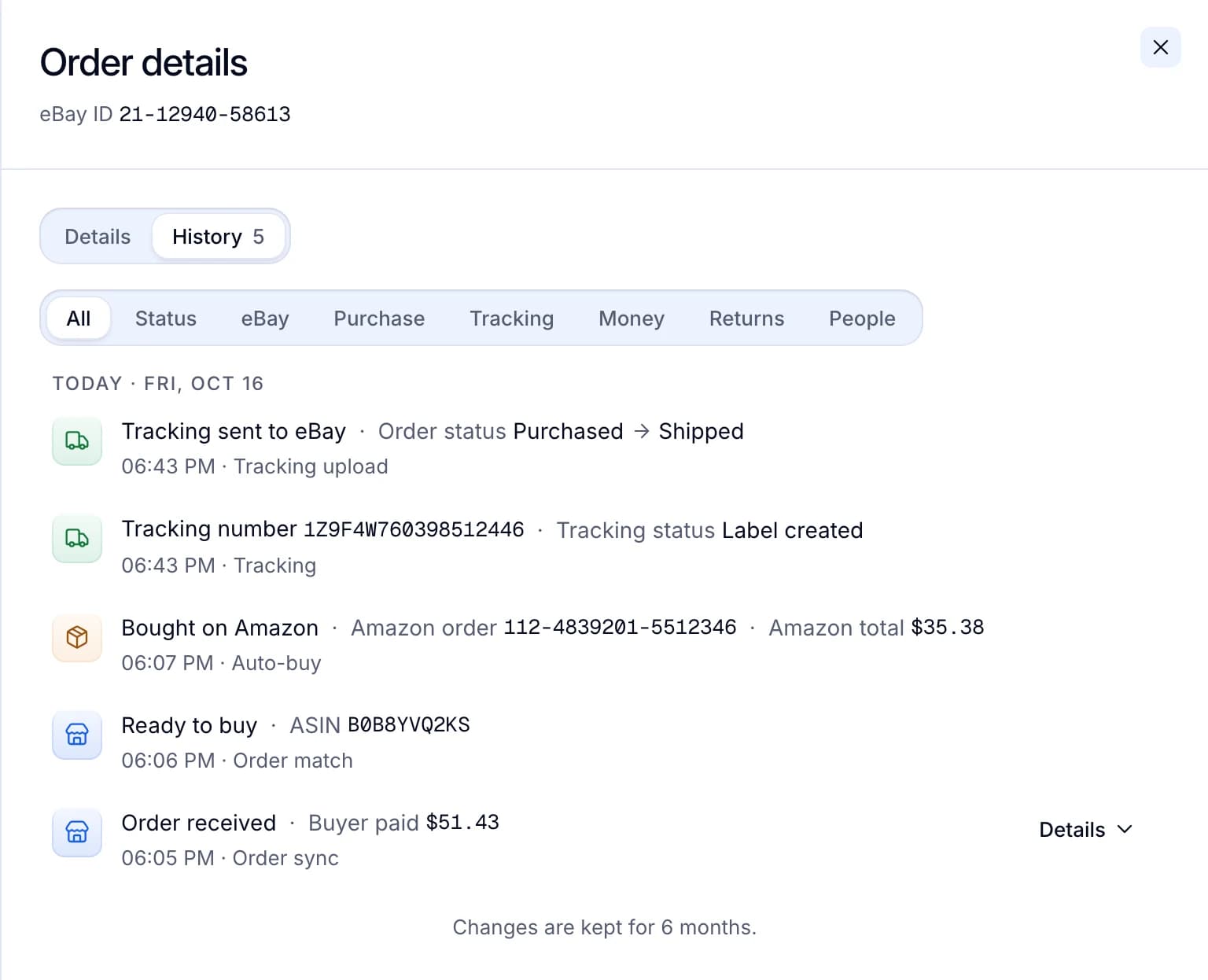
A product you add by hand keeps the price and quantity you give it. Productivo leaves it out of Amazon price checks, repricing and Auto Buy.
Written by the Productivo team. Source review: eBay’s Seller Hub help page, Seller Hub introduction, eBay Export’s Seller Hub tour, monitoring your business and Seller Hub Reports, eBay Developers’ Seller Hub tabs, getting paid, selling limits and payments and earnings, checked 21 October 2026.