
How-to guide · Intermediate · 8 steps · Updated 18 October 2026
Terapeak on eBay: how to use every filter and figure
Terapeak is eBay’s sales research tool. eBay now calls it Product Research. It is free for sellers in Seller Hub and in the eBay app. This guide walks through every search control and every figure on its results screen. You finish with one search you trust and a short note on price, demand and season for one item.
Want the whole decision, from idea to a small test? The eBay product research guide covers it. This guide goes deep on the tool. Follow the example first, or start with step 1.
Steps 1 to 8 use only eBay’s own tools. The last part shows how Productivo, the app behind this guide, can help. You do not need a Productivo account for the steps.
Before you start
In shortMake sure you can open Seller Hub, then pick one exact item to research.
Who it is for
LevelIntermediate
WholesaleEasy
You can search the exact model or barcode and get clean figures for it.
ResellingMedium
Used items differ in condition and parts, so step 5’s listing check takes longer.
HandmadeMedium
Your item is one of a kind, so in steps 2 and 5 you search and keep similar items.
Wholesale dropshippingEasy
The steps work as written. On the Active tab, also compare delivery times.
Do you plan to buy each item from another shop after it sells and ship it straight to the buyer? eBay does not allow that. The eBay dropshipping policy guide explains what is allowed.
- You finish with
- One search for one item that you trust, its figures checked listing by listing, and a short note on price, demand and season.
- You need
- An eBay account that can open Seller Hub. eBay asks for one sale first.
- One exact item: brand, model, size and condition. A barcode number helps.
- A note or spreadsheet for your search, filters and figures
- About 45 minutes. For step 8, an eBay Store at Basic level or higher.
Worked example: one made-up item, one full search
In shortA 90-day search in summer makes a winter item look weak, until you compare the same months.
This is a made-up practice case. The item, sales and prices are not real. You will not find them on eBay.
A seller wants to stock the Practice HW-3, a rechargeable hand warmer, new. Sellers write its battery size two ways: 10000mAh and 10Ah. Some listings sell only a case for it. It is October.
- Search:
Practice HW-3 hand warmer AND (10000mAh OR 10Ah) -case. It finds both ways of writing the size and leaves out cases. - Filters: Last 90 days, ebay.com, condition New.
What the Sold tab shows
The made-up hand warmer search: new items, last 90 days, on ebay.com.
Research productsListing Site: ebay.com
Search: Practice HW-3 hand warmer AND (10000mAh OR 10Ah) -case
Dates: Last 90 days
- Category
- Condition: New (chosen)
- Format
- Price
- Buyer location
- Seller location
- Sold (open)
- Active
Last 90 daysShow sales trends: off
- Avg sold price
- $29.39
- Sold price range
- $24.00–$49.00
- Avg shipping
- $1.56
- Free shipping
- 64%
- Total sold
- 36
- Sell-through
- 31%
- Total sellers
- 5
- Total item sales
- $1,058.00
A drawing, not eBay’s screen. The labels follow eBay’s help pages and example screens. The numbers are made up.
Check the listings. One listing is a 2-pack. Without it, the Avg sold price drops from $29.39 to $27.61. Step 5 shows the listings.
Check the season. The last 90 days were summer and early fall. So 36 sold looks small. The trend chart over two years tells a different story.
Total sold in the same months
| Month | Two winters ago | Last winter |
|---|---|---|
| September | 10 | 12 |
| October | 22 | 30 |
| November | 48 | 64 |
| December | 71 | 95 |
| January | 39 | 52 |
| February | 18 | 21 |
| Total | 208 | 274 |
Sales peak in December, both winters. Last winter sold 274. That is about a third more than the winter before.
The seller’s note
- Search and filters saved, to run again in November.
- Sold price about $27.61 without the 2-pack. Most sales ship free.
- Sales peak from November to January, and grew last winter.
- Stock listed by early October, when sales start to climb.
- Sell-through 31% in the quiet season. Check it again in November.
eBay Terapeak research, step by step
Take one item through the steps. Steps 1 to 7 work for every seller. Step 8 needs an eBay Store.
Step 1 of 8: Open Product Research in Seller Hub
In shortSign in to eBay and open the Research tab in Seller Hub, with no separate Terapeak login.
Terapeak is now called Product Research. It lives in Seller Hub, the page where eBay sellers manage their business. There is no separate Terapeak account or login.
- Sign in to eBay with your seller account.
- Go to ebay.com/sh/research. Or open Seller Hub and choose the Research tab.
- Choose Product research in the menu on the left. Sourcing insights is just below it.
- Check Listing Site at the top right. It sets the eBay site you research, like ebay.com.
Work with a team? With eBay’s Team access, a helper can use Product Research without your password.
A short history helps you read older advice. eBay bought Terapeak in 2017. The tool became Terapeak Product Research, free for all Seller Hub sellers since April 2021. In 2024, eBay dropped the first word. Older tips that use the old name mean this tool.
Result: Product Research open, with your eBay site chosen.
Step 2 of 8: Build a search that finds one item
In shortType the exact model or barcode, then remove wrong items with a minus sign.
Product Research is strict. eBay says a sale must exactly match your words and filters to count. Normal eBay search also shows related items. This tool does not. So your words decide what every figure means.
Search by product number
The search box takes words or a product number. That can be a UPC or EAN (barcode numbers), an ISBN (for books), an MPN (the maker’s part number) or an ePID (eBay’s catalog number). A number gives the cleanest results. Not every listing has one, so also try the model name.
Search words Product Research understands
These come from eBay’s help page. The words must be in the listing title.You type It finds hand warmer 10000mAhTitles with all of these words hand warmer -caseTitles without the word “case”. AND NOT casedoes the same.hand warmer AND (10000mAh OR 10Ah)Titles with either word in brackets. Use it when sellers write the same thing two ways. Before you join spellings with OR, search each one on its own. One that finds no sales is a spelling sellers do not use, so leave it out.
The search reads titles only. A detail that a seller puts only in the item specifics, like color, is not in the title. For such a detail, use the category’s Color or Model filter in step 3, not a word.
Type slowly. The box suggests words and categories that sellers often search. They show how most titles name your item.
Open a few results before you trust a search. Then add a minus word for each kind of wrong item, like
-case,-partsor-lot.Result: One search line that finds only your item, written down.
Step 3 of 8: Set the dates, eBay site and filters
In shortStart with the last 90 days on your eBay site, then pick the category and condition.
Next to the search box is the date menu. It has ready ranges, from Last 7 days to Last 3 years. Custom lets you pick any dates in the last three years.
Start with Last 90 days, the longest range that shows sell-through. Use longer ranges later, for trends.
The filters, and when to use them
Start with the eBay site, category and condition. Add the others when the results still mix items.Filter Use it to Listing Site Choose the eBay site where the items sold. Pick the one you sell on, like ebay.com. Category Keep one category. Pick it down to the last level, then select Apply. Filters for that category appear, such as Model or Color. Condition Keep only your item’s condition, like new or used. The reselling on eBay guide lists eBay’s used condition names. Format Keep fixed price or auction sales. Run both to see which sells your item for more. Price Set a price band. It hides parts and bundles priced far from your item. Buyer and seller location See sales to buyers in one country, or by sellers in one country. Pick your own country as the seller location to compare with sellers who ship from where you do. Write the search, dates and filters in your notes. Then you can run the same search next month and compare.
Result: Your search, dates and filters, written down so you can run them again.
Step 4 of 8: Read the figures on the Sold tab
In shortRead each figure with its trap in mind, then check the figures against each other.
Select Research. The results have two tabs, Sold and Active. Start on Sold. Its figures sum up every sale that matches your search. The drawing in the worked example shows where they sit.
What each figure tells you
The price figures do not include shipping. Add it back to compare what buyers paid in total.Figure What it tells you How it can mislead Avg sold price What buyers paid per item, on average One bundle or wrong item moves it Sold price range The lowest and highest sold price The ends are often odd sales: parts, bundles, damage Avg shipping What buyers paid for shipping, on average Free shipping counts as $0 and pulls it down Free shipping The share of sales with free shipping Free shipping is built into the price, so compare totals Total sold How many items sold in your dates One busy seller can make most of it Sell-through The share of listings that sold, by eBay’s own count. Only for 90 days or less A high rate can rest on very few listings Total sellers How many sellers sold it With one or two, demand may follow those sellers Total item sales Sold prices added up, without shipping A big total can come from a few costly sales Sold prices are what buyers really paid. That includes an accepted Best Offer, where the buyer offered less and the seller said yes. eBay says this makes Product Research more complete than the Sold filter in normal search. These prices also help you set your own Best Offer limits. The eBay pricing strategy guide shows how.
Check the figures against each other. Many sales but very few sellers? Then one seller may carry the demand. A very wide price range? Then your search may mix different items. Only a handful of sales? Then one sale moves every average, so widen the dates. Step 5 shows how to check.
Few sellers? Look at each seller’s share of the sales, which Product Research also shows. If one seller has most of them, you compete with that seller’s price and feedback.
Result: The eight figures for your search, each with a note on what could make it wrong.
Step 5 of 8: Check the sold listings behind the figures
In shortGo through the listings under the figures and leave out every one that is not your item.
Under the figures is a table of the listings that sold. eBay’s example screens show columns like Avg sold price, Avg shipping, Total sold, Item sales and Date last sold.
Sort the table by price, highest first. Then sort it lowest first. Odd sales sit at the two ends.
For each listing, check:
- The itemSame model, size, pack and condition as yours.
- The photosA title can match while the item is different.
- The dateAn old sale may show an old price.
- The sellerMany sales from one seller can hide weak demand from everyone else.
Select a title to open the listing. eBay says you can open listings that sold in the last 90 days, or that are still for sale. Older listings may not open.
The example’s sold listings
Made-up listings from the hand warmer search. One of them is not the same item.Listing Sales Same item? Practice HW-3 hand warmer 10000mAh 14 sold at $29.00 + free shipping Yes Practice HW-3 hand warmer 10Ah 9 sold at $24.00 + $4.00 shipping Yes Practice HW-3 rechargeable hand warmer 10000mAh · Best Offer accepted 6 sold at $27.50 + free shipping Yes Practice HW-3 hand warmer 10000mAh, 2 pack 3 sold at $49.00 + free shipping No: two in one pack Practice HW-3 hand warmer 10Ah, USB-C 4 sold at $31.00 + $5.00 shipping Yes One wrong listing can move every average. In the example, the 2-pack lifts the Avg sold price from $27.61 to $29.39. In the app, Exclude listing removes a result that is not your item. You can also add a minus word, like
-pack.Find the keywords in listings that sell
Sort by Total sold, highest first, and open the top listings. Note the keywords most of their titles share, like the model, size or color. Compare their photos and item specifics too. eBay suggests this to improve your own listings. The eBay listing checklist shows where those words go.
Have a listing that does not sell? Search the same item here. If others sell it, compare your price, photos and item specifics with theirs.
Result: A list of sold listings that match your item, and your figures without the wrong ones.
Step 6 of 8: Compare asking prices on the Active tab
In shortSwitch to the Active tab to see the listings you would compete with today.
The Active tab shows listings that are still for sale. Their prices are asking prices: what sellers hope to get. Keep asking prices apart from sold prices.
Keep the same search and filters. Then look at:
- How many listings competePut the number next to how many sold in the same dates.
- The total priceAdd price and shipping. Many listings put shipping into the price.
- Delivery time and returnsBuyers compare these too.
- A competitor’s listingOpen it to see the price, photos and item specifics, the details like size or color. Then look for the same item on the Sold tab to see what it really sold for.
Many active listings and few sales mean buyers have lots of choice. Then your price and listing need a clear reason to win.
Result: The asking prices and number of active listings, kept apart from the sold figures.
Step 7 of 8: Compare seasons and eBay sites
In shortLook at two or three years of sales, compare the same months, then try other eBay sites.
Turn on Show sales trends. A chart then shows Avg sold price and Total sold over your dates. Set the dates to Last 2 years or Last 3 years to see a pattern.
Compare the same months, not just the last few weeks. A winter item looks weak in July. Use Custom dates to put, for example, last November next to the November before. The worked example does this for two winters.
Compare eBay sites
Change Listing Site to another eBay site, like ebay.co.uk or ebay.de. Run the same search. Compare how many sold and the sold prices. Prices show in that site’s currency.
On your own site, try the buyer location filter. Pick one country at a time to see where your item’s buyers are.
Result: A note on the item’s season and trend, and which eBay site sells it best.
Step 8 of 8: Find categories with Sourcing Insights
In shortWith a Basic Store or higher, use Sourcing Insights to find categories with high demand and few listings.
Sourcing insights is the second tool in the Research tab. It looks at whole categories, not one item. It comes free with an eBay Store subscription at Basic level or higher.
What it shows:
- Great OpportunityCategories with many searches and not enough active listings.
- Monthly sales trendsSo you can plan stock before a busy season.
- Top item specificsThe details, like color or size, that get the most views and clicks.
A Great Opportunity tag points at a category, not at an item. Take every item idea back to steps 2 to 7 before you buy stock.
Result: A short list of categories worth a closer look, each item checked again in Product Research.
Sell-through in Terapeak: how to read it
In shortRead sell-through for 90 days or less, and always next to total sold and total sellers.
The sell-through rate tells you how much of what was listed really sold. Product Research shows it as Sell-through on the Sold tab.
eBay shows it only when your dates cover 90 days or less. For longer dates, the figure is empty. eBay’s own example screen shows a dash for a one-year search.
eBay describes it as the percentage of similar items sold in your dates. Its help pages do not give the exact formula. Other websites use their own formulas, so their numbers will not match eBay’s. Compare eBay’s figure only with other eBay figures. To work out a rate from your own counts of active and sold listings, use the free eBay sell-through rate calculator.
When to trust the rate
Good signs
- Many sales and several sellers behind the rate
- A similar rate in several 30-day ranges
- A rate close to that of similar items in the same dates
Weak signs
- A high rate from a handful of listings
- Only one 30-day range checked
- A search that mixes different items
- A winter item checked in summer
In the worked example, the rate is 31% in a quiet season. Read it next to the trend, not on its own.
What Terapeak can and cannot tell you
In shortIt shows past eBay sales and live listings, not your costs, your supplier or next month’s demand.
What it cannot tell you
- Future demandPast sales are not a promise. Trends change.
- Your costsIt does not know your buying price, fees or shipping. The eBay fee calculator guide helps with the fees.
- Your supplierIt cannot say if you can get the item, at what price or how fast.
- Why a listing soldPrice, photos, delivery time and the seller’s feedback all count. Open the listing to see them.
- Sales outside eBayIt only counts eBay sales.
For the whole decision, from costs to a small test, follow the eBay product research guide.
Is Terapeak worth it?
For most eBay sellers, yes. It is free with Seller Hub. It is eBay’s own sales data, with accepted Best Offer prices and up to three years of history.
It helps most when you research one exact item, like a model or barcode. It helps less with one-of-a-kind items, which have few matching sales. And it takes time. Each item needs a careful search and a look at the listings.
Common questions about Terapeak
Is Terapeak free?
Yes. Product Research is free for sellers who can open Seller Hub. Since April 2021, you need no Store or separate subscription. You do need one sale to turn on Seller Hub. Sourcing Insights is different. It needs a Basic Store or higher.
Can anyone use Terapeak?
Any seller who can open Seller Hub. eBay opens it after your first sale, so a buyer with no sales cannot use it yet. Staff can use it through Team access, without your password. Sourcing Insights also needs a Basic Store or higher.
How does Terapeak work?
It sums up eBay’s own sales that match your search. You type words or a product number and choose dates, up to three years back. It keeps only sales whose title holds all your words. Then it shows figures like Avg sold price and Sell-through.
How do I access Terapeak on eBay?
Open Seller Hub and choose the Research tab. The direct address is ebay.com/sh/research. In the eBay app, open the Selling tab and tap Research under Jump to. Step 1 has the details.
Is there a separate Terapeak login?
No. You sign in to eBay with your seller account. Then you open Product Research inside Seller Hub. There is no other account or password.
Is Terapeak still available?
Yes, under a new name. eBay changed the name in 2024. The tool is now called Product Research, and its category tool is called Sourcing Insights.
How far back does Terapeak go?
Up to three years. You can pick any dates from one day to three years. Sell-through shows only for 90 days or less.
Why is Sell-through empty in Terapeak?
Your dates cover more than 90 days. Product Research shows Sell-through only for 90 days or less, and a dash for longer ranges. Pick the last 90 days, or a 30-day range, to see it. The sell-through part lists good and weak signs.
Can I use Terapeak on mobile?
Yes. Product Research has been in the eBay app for iOS and Android since 2024. It covers up to three years of sales. eBay says some desktop features are not in the app yet.
What are alternatives to Terapeak?
The free Sold items filter in eBay search is the simplest one. It shows about the last 90 days, but no averages and no accepted Best Offer prices. The eBay sold listings guide shows how to use it.
Other companies sell paid research tools. Many scan lots of items at once. eBay says Product Research data is real time, up to today. Before you trust another tool, ask where its eBay numbers come from and how old they are.
How Productivo helps with Terapeak research
In shortProductivo reads many eBay results at once and estimates profit, but it does not replace Terapeak’s sales history.
Everything above works with eBay’s own tools. This part is about Productivo, the app behind this guide.
Where Productivo fits in the steps
| Guide step | What Productivo does |
|---|---|
| Steps 2 and 3 | Product Scanner reads eBay US results for a keyword or up to five categories. You choose how many result pages it reads. |
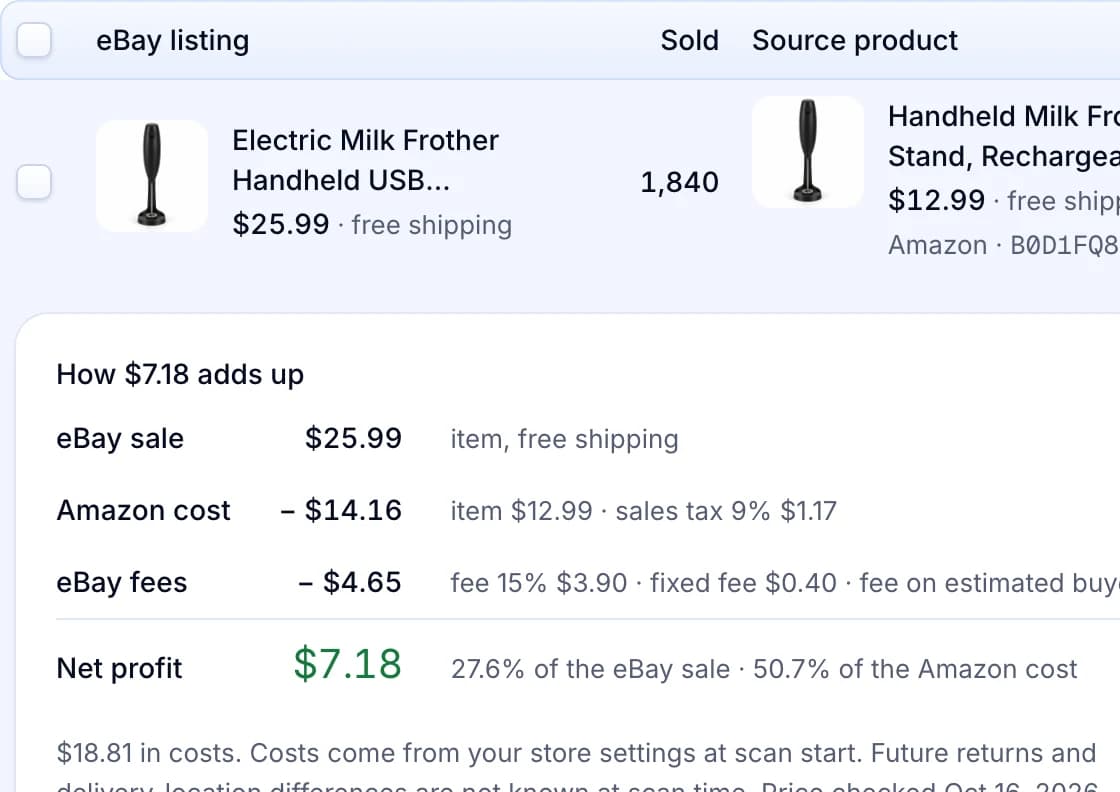
| Step 4 | It adds a figure Product Research does not have: an estimated profit per item, from your store’s cost settings. Unknown supplier shipping is shown as unknown. |
| Step 5 | Each result shows how many that listing has sold. That is the listing’s all-time count, not a count for your dates. |
| Step 6 | For products you sell with Productivo, competitor pricing finds other eBay sellers of the same product and shows their prices. |
Product Scanner is part of the Pro and Scale plans. Competitor pricing is in every plan. Neither replaces Product Research’s three years of sales history. Check dates, seasons and sell-through there. Read more about Productivo’s eBay product research tools.
Sold counts beside an estimated profit
Each result shows the eBay listing, its sold count, a matched supplier offer and the estimated profit. The sold count is the listing’s all-time total.
Productivo by business model
Pick how you sell. Each part names the steps where Productivo helps that kind of seller, and what you still do yourself.
In shortThe model and barcode you researched go on your wholesale listings through the CSV, with your price.
| Stage | What Productivo does |
|---|---|
| Step 2 | Keep the model number and barcode from your search. Add specific:MPN and specific:UPC columns to the CSV template, and Productivo sends them to eBay as the item’s part number and barcode. |
| Step 7 | Found the item’s season? Schedule the listings to go live at a set time, up to 7 days ahead. |
| After you list | On Pro and Scale, the Listing Optimizer reads each live listing’s last 30 days through the Chrome extension. It shows the searches buyers used and how many sellers compete in each. |
What it does not do: Productivo does not replace Terapeak’s sales history, and it lists on eBay US only. The Optimizer’s AI drafts need a matched Amazon product, so your items get the numbers, not the drafts.
In shortAfter your Terapeak check, describe your item’s exact condition and parts, and fill in any missing buyer filters.
| Stage | What Productivo does |
|---|---|
| Step 5 | Used items differ from the sales you matched. When you add yours, pick its exact condition and name what is missing or worn in the Condition description. |
| Listing | Once it is live, Products shows Missing filters when one of eBay’s main buyer filters, like Color or Size, is left empty. Fill it in on eBay. |
| If it does not sell | Reports › Orders lists your Listings with no orders. Search each one here again, and compare your price, photos and item specifics. |
What it does not do: Productivo does not show what used items sold for. Product Scanner reads only new Buy It Now listings, and competitor pricing skips items you add yourself, so the Active tab check stays with you.
In shortFill in the item specifics buyers click most, then see which searches find your live listing.
| Stage | What Productivo does |
|---|---|
| Step 6 | On Pro and Scale, the Listing Optimizer shows the searches buyers use to find your live listing. It also shows how many sellers compete in each one. |
| Step 7 | Get a season’s pieces ready early as drafts. Then schedule them to go live at a date and time you pick, up to 7 days ahead. |
| Step 8 | Put the top item specifics into the Create product form. It asks for the ones your category requires and offers the rest under Add item specific. |
What it does not do: Productivo does not look up the sold prices of similar items for you. Product Scanner and competitor pricing need the same product in another shop, such as Amazon, so they skip your own designs.
In shortCompare delivery times on the Active tab with your own, then see which buyer searches find your listings.
| Stage | What Productivo does |
|---|---|
| Step 6 | Your delivery time comes from the shipping policy you pick when you list, and every new listing in the store takes it. Pick one with a handling time your supplier always meets, and a return policy it honors. |
| Step 8 | Found a category’s top item specifics? Add them to the supplier’s sheet as specific: columns of the CSV template, up to 25 per item. |
| After you list | On Pro and Scale, the Listing Optimizer shows each live listing’s top buyer searches, with eBay’s search count and how many sellers compete. It reads your Seller Hub traffic through the Chrome extension. |
What it does not do: Productivo has no sales history, so dates, seasons and sell-through stay in Terapeak. It lists on eBay US only, and competitor pricing works on Amazon products only.
Written by the Productivo team. Source review: eBay’s Product Research help page (search rules and Team access), research tools overview, Product Research and Sourcing Insights guide with its example screens (real-time data and seller shares), April 2021 news that made Terapeak Product Research free, 2024 announcement of Product Research on mobile, July 2024 and October 2024 seller updates, eBay Inc.’s Terapeak Research 2.0 article and the dropshipping policy, checked 18 October 2026. The numbers in the example are made up.